Having movies, series, or Live Channels on a large screen is an experience worth remembering. If you are working with the PPCine APK on your Android, you will enjoy the content on a Smart TV or on a regular TV capable of casting. PPCine supports casting, and this article will walk you through the whole checklist of how to cast PPCine APK from your phone to TV.
Why Cast PPCine to TV?
Casting PPCine to your TV is one of the best ways to enjoy movies, web series, and live content on a bigger and better screen. While watching on a phone is convenient, the small display can limit the experience, especially when streaming high-quality videos. Casting allows you to enjoy your favorite shows in full HD or 4K on your television, making it feel more like a cinema at home.
It also makes family or group watching much more fun, as everyone can enjoy the same content together without huddling around a phone or tablet. The sound quality improves too, as TVs usually come with better speakers. Plus, casting PPCine to your TV is very simple and works smoothly with Smart TVs, Android TVs, Chromecast, or TV boxes. It gives you more comfort, better visuals, and a richer viewing experience overall.
Requirements for Casting PPCine
Before getting started, ensure you have the following:
- An Android phone with the PPCine APK installed.
- A Smart TV or a TV with a casting device like Chromecast, Fire TV Stick, or Miracast support.
- Both devices (phone and TV) should be connected to the same Wi-Fi network.
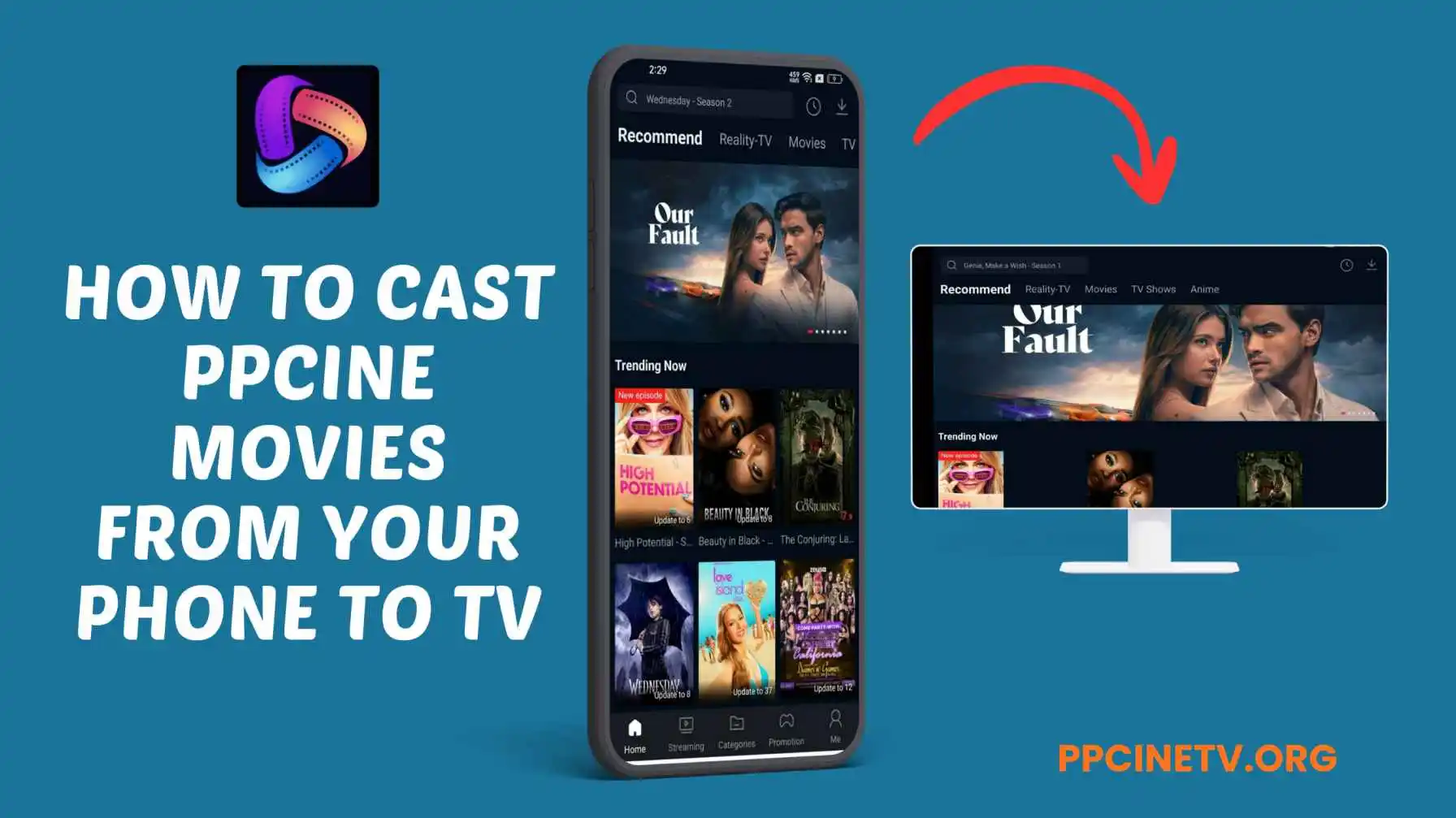
How to Cast PPCine APK From Your Phone to TV
Step 1: Install PPCine on Your Phone
Make sure you have the latest version of PPCine APK installed on your Android phone. You can download it from ppcinetv.org.
Step 2: Turn On Your TV and Enable Casting
If you’re using a Smart TV:
- Turn on the TV.
- Enable or select screen mirroring or screen casting from the settings (their names may change from brand to brand: it can be Screen Mirroring, Miracast, Smart View, etc.).
If you have something like a Chromecast or Fire TV Stick:
Plug the device into your TV and set up so that it is on the same Wi-Fi network as your phone.
Step 3: Open PPCine and Play a Video
- Launch the PPCine app on your phone.
- Browse and select the movie or show you want to watch.
- Tap the Play button.
Step 4: Tap the Cast Icon
- Once playback starts, a cast icon usually shows up at the top right of a video player.
- Tap on the cast icon and your phone will seek for available devices.
- Select your TV or casting device from the list.
Step 5: Sit Back and Enjoy on Big Screen
- Your video will begin to play on your TV once the connection has been made.
- You can control playback (pause, play, skip) directly from your phone.
Final Words
Casting PPCine to your TV completely changes the way you watch movies and shows. Instead of staring at a small phone screen, you can enjoy everything on a big display with louder sound and better clarity. It feels like turning your living room into a mini-theater. Whether you’re watching the latest blockbuster, binge-watching a series, or catching live sports, casting adds more comfort and convenience. You can even control everything directly from your mobile without interrupting the stream.